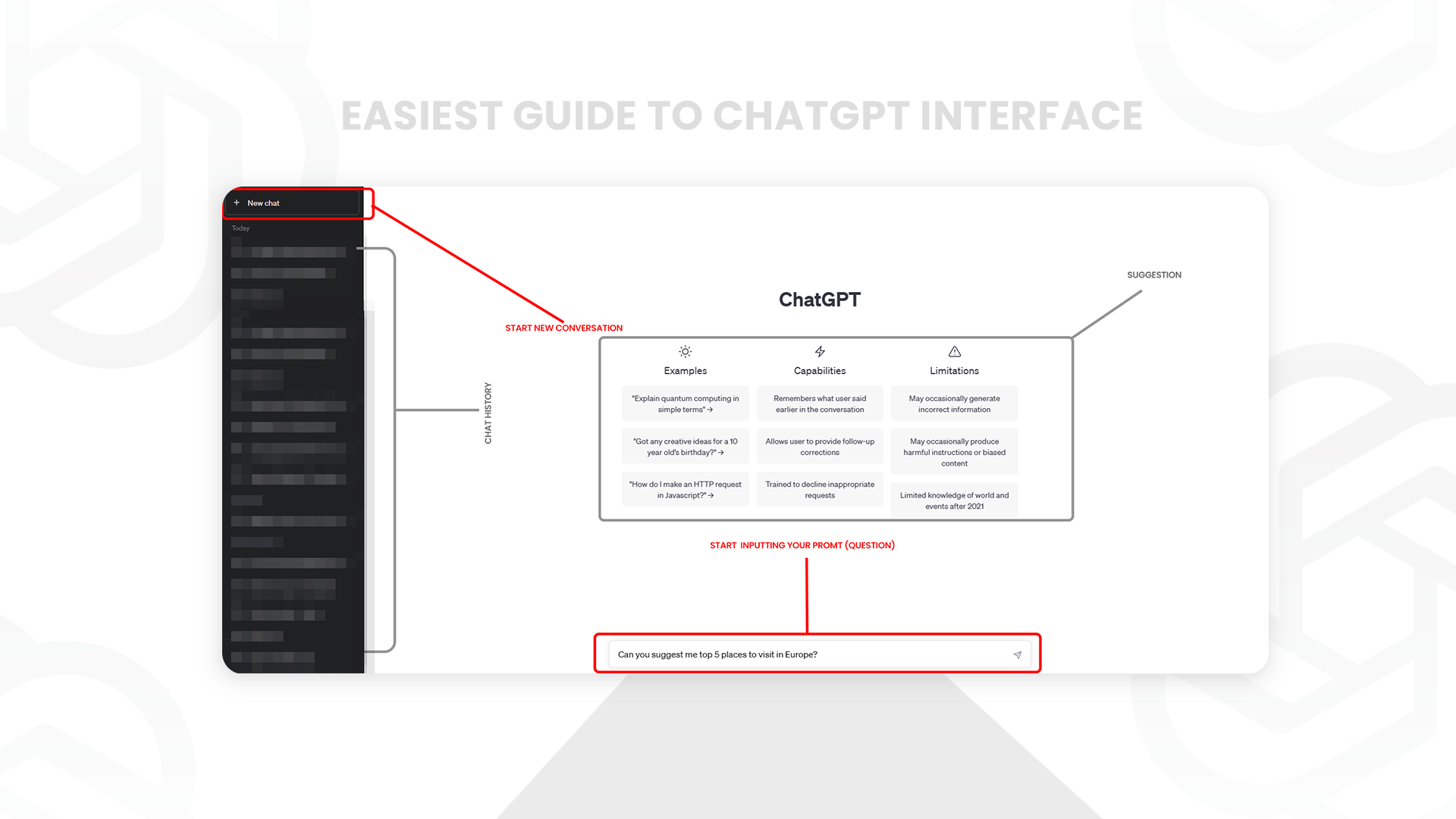
In this digital era, conversing with AI has become more commonplace than ever before. ChatGPT, powered by OpenAI’s cutting-edge language model. This guide will walk you through the steps of effectively utilizing the ChatGPT interface, empowering you to extract valuable insights or find answers to your burning questions.
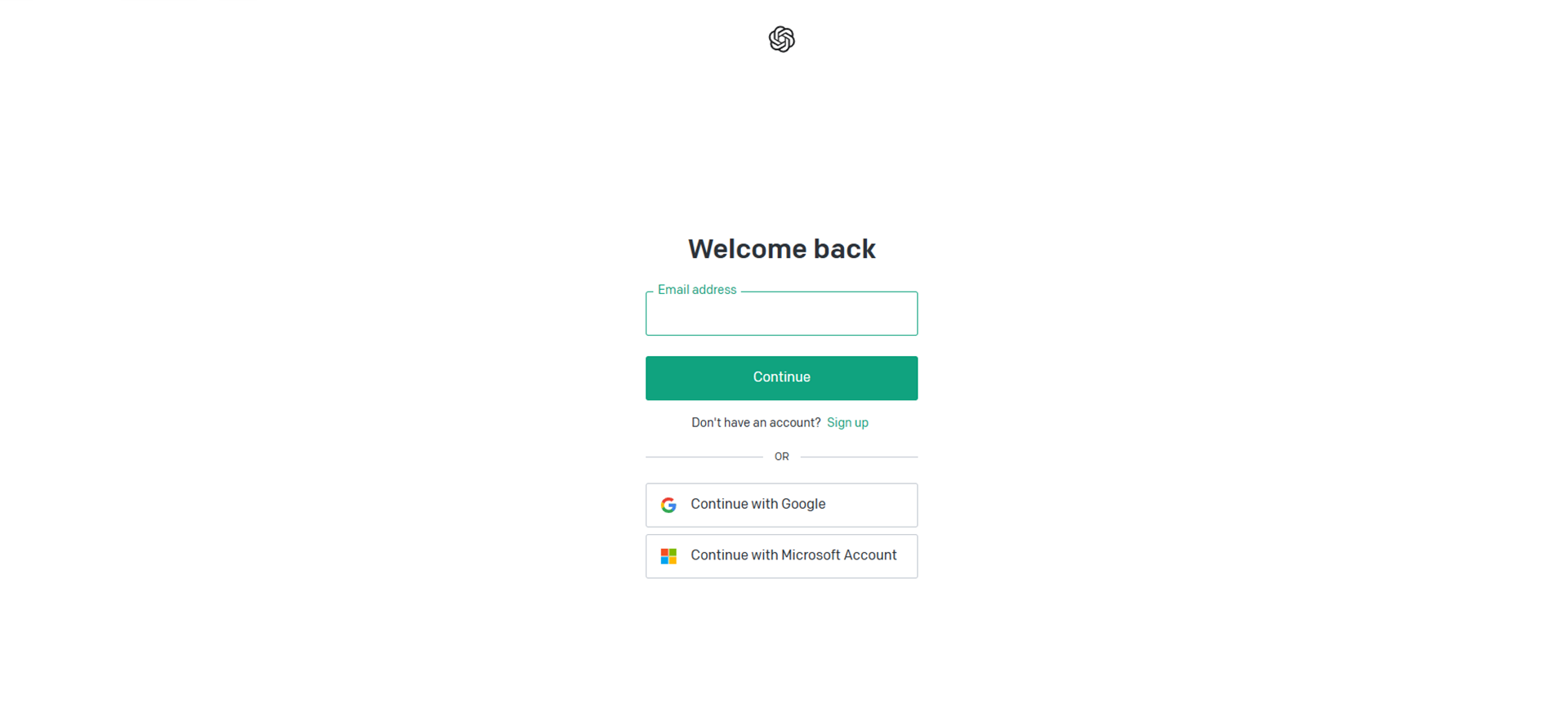
To get started, open your preferred web browser and navigate to the ChatGPT website (https://chat.openai.com/) . The welcoming interface awaits your input, ready to engage in conversation.
NOTE: You will have to create a free OpenAI account if you don’t have one.
Step 2: Start a Conversation
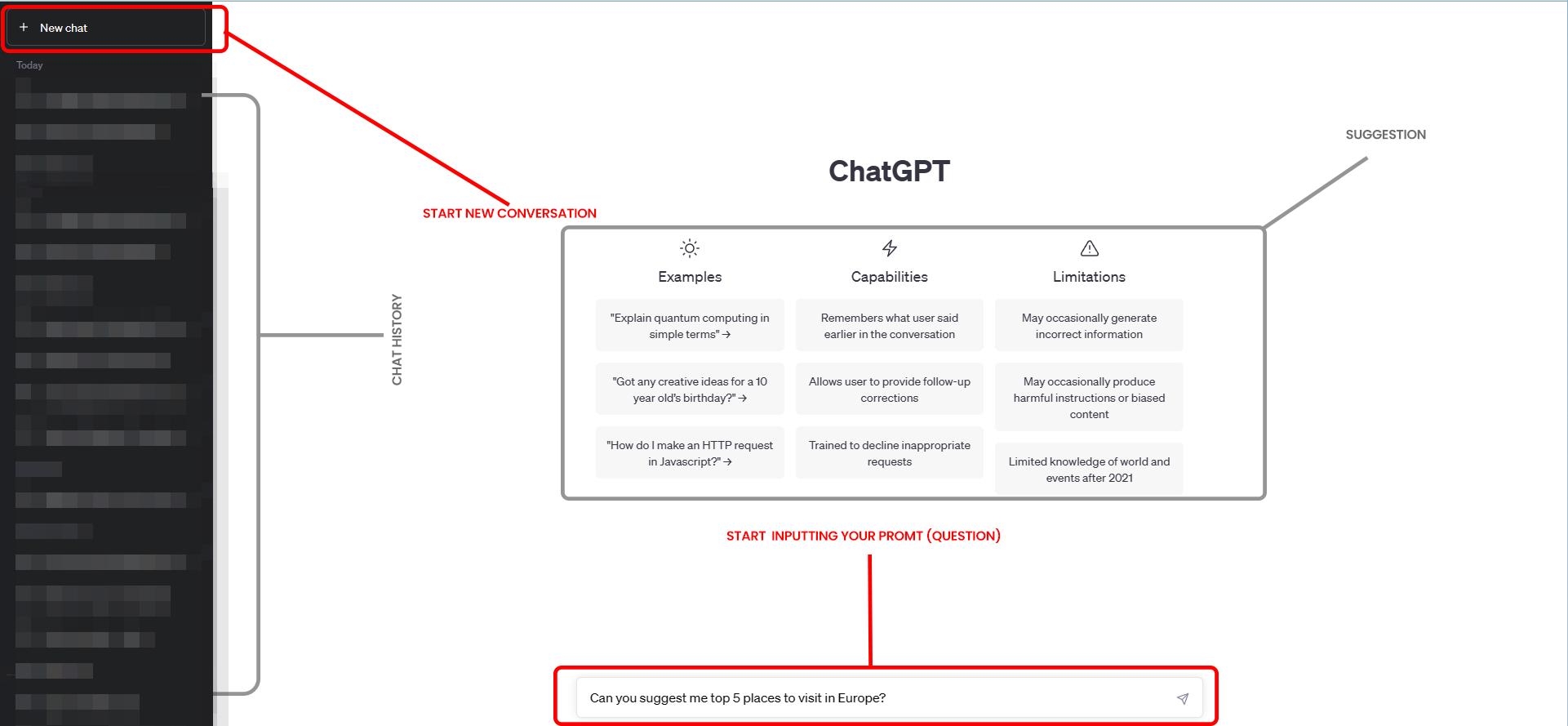
Once you land on the ChatGPT interface, you’ll notice a chatbox or text input area. This is where the magic happens! Begin your interaction by typing a message or posing your question within the chatbox.
Step 3: Ask a Question or Provide Input
Keep your language simple and concise when conversing with ChatGPT. By breaking down complex sentences into smaller, understandable parts, you enhance the model’s comprehension and response accuracy.
Step 4: Receive a Response
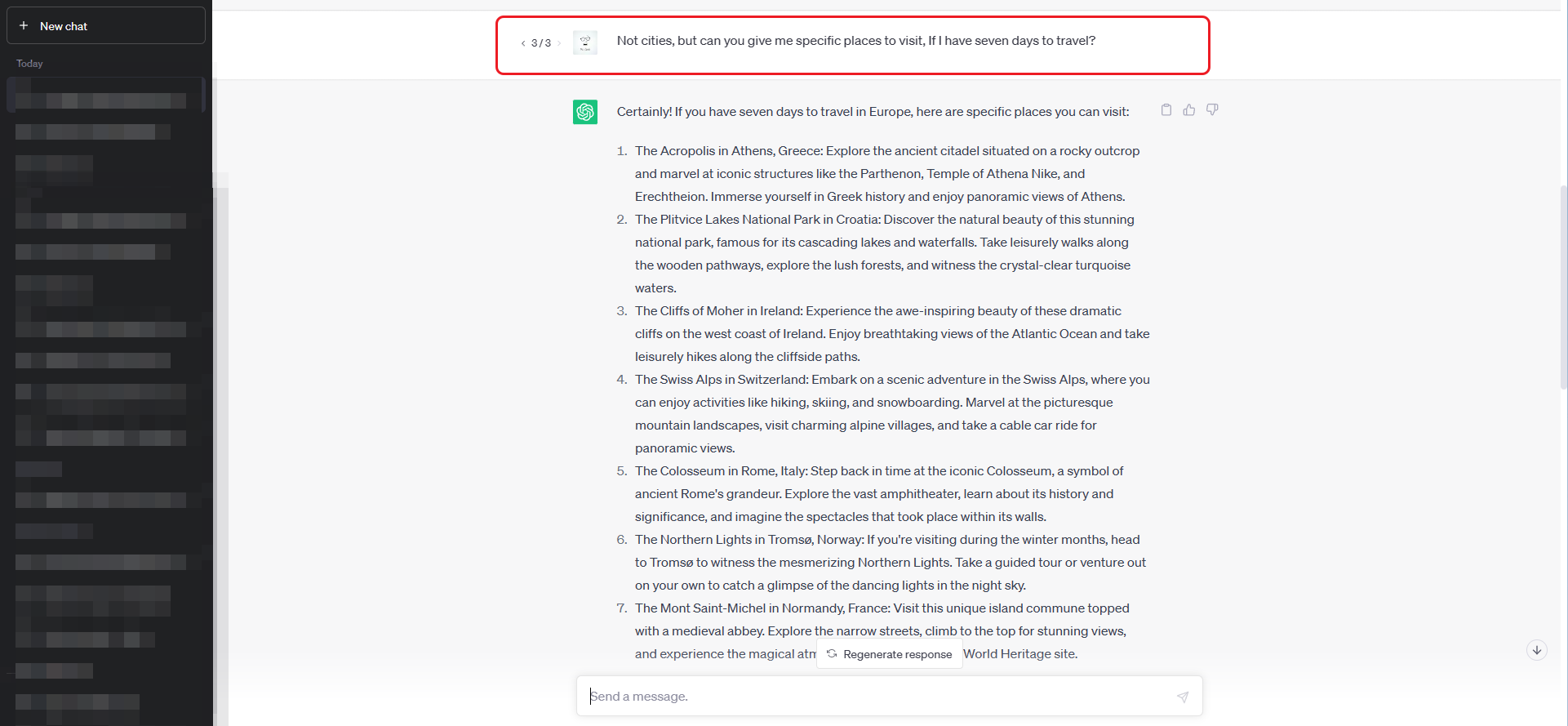
After submitting your input, ChatGPT swiftly processes your message and generates a thoughtful response. Allow a brief moment for the model to work its magic. The generated response will appear in the chatbox.
Step 4.5: regenerate response
If you are not satisfied with the response generated by ChatGPT then you can click the Regenerate response button as many times as you want.
Step 5: Experiment and iterate
To optimize your conversation, feel free to experiment! If the initial response does not meet your expectations,
Try rephrasing your question or providing additional specific details. Iterate the conversation until you obtain the desired answer or information.
Step 6: Continue the Conversation
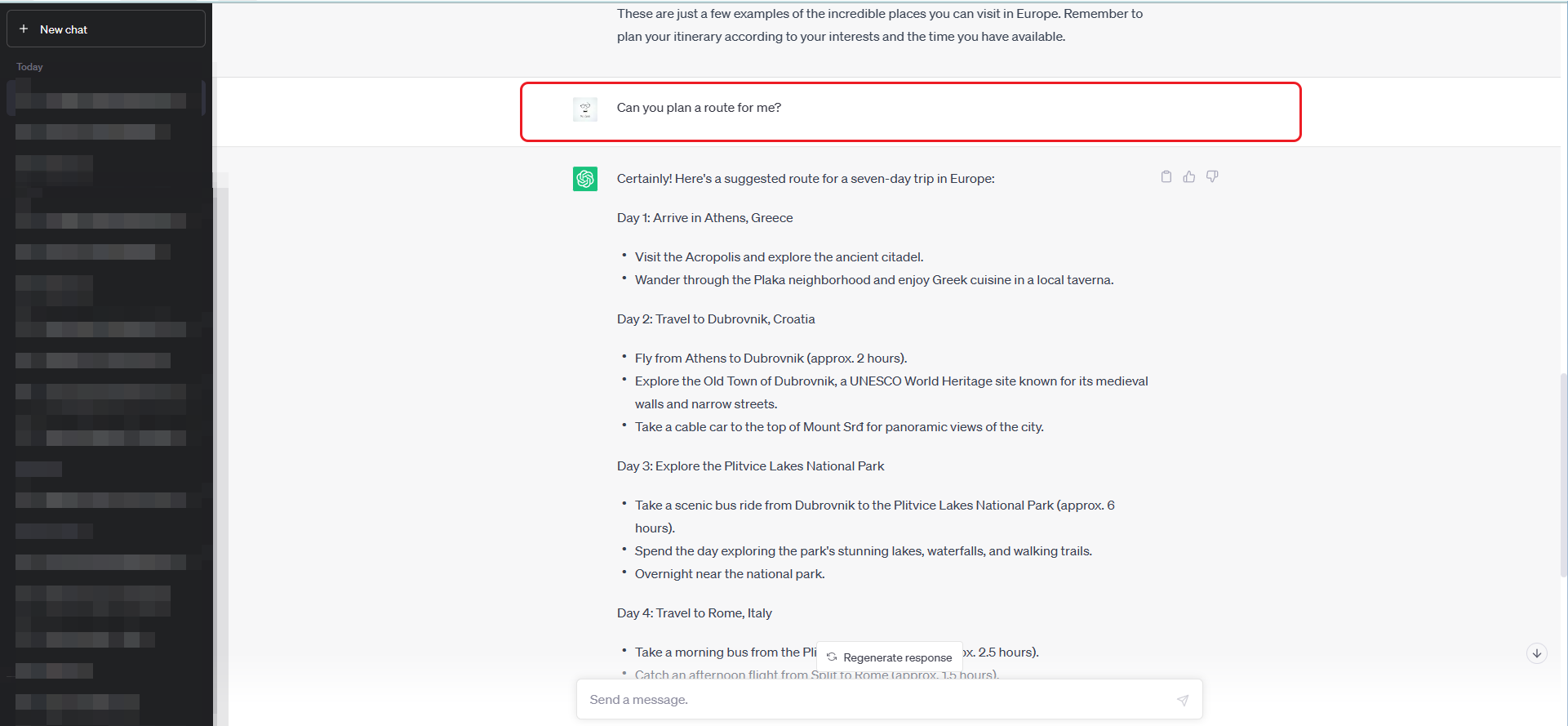
If the response does not fully address your question or if ChatGPT requests additional information, fear not! You can seamlessly continue the conversation by providing more input or posing follow-up questions.
Step 7: End the Conversation
Once you have gathered the information you need or completed your interaction, you can simply close the ChatGPT interface or exit the web page.
Your Chat history will be available in the side bar, you can also delete any particular history that you want to.
Limitation of ChatGPT (IMPORTANT TO UNDERSTAND)
Lack of real-world knowledge: It doesn’t know about events or information that occurred after the data it was trained on. The current free version as of writing this blog is ChatGPT 3.5 was trained on Sep 21, so it does not have any information after that.
Lack of emotional understanding: ChatGPT doesn’t fully understand or empathize with emotions expressed in text.
Inability to verify sources: ChatGPT cannot independently verify the accuracy or reliability of information it provides, so fact-checking is important.
Inconsistent responses: Different phrasings of the same question may result in inconsistent or varying answers.
Limited creativity and originality: While ChatGPT can generate text, its responses are based on existing patterns and it may not offer truly creative or original ideas.
Lack of common sense reasoning: It may not possess common sense knowledge and may provide responses that seem illogical or nonsensical.
Dependence on training data: The model’s responses are based on patterns learned from training data, which may include biases and inaccuracies.
If you want to implement ChatGPT/OPEN AI Integration into your ecommerce website